Student BYOD Program
The Bring Your Own Device (BYOD) Program is compulsory for all students in Years 5 –12.
Guidelines on the choice of personal device and optional accessories are available below.

For your convenience Ascham IT has negotiated BYOD purchasing options via Next Technologies. If you purchase your daughters laptop from the BYOD portal, it will be pre-onboarded (to the School network and required applications and programs) and delivered either to you, or to Ascham IT, depending on your selection when ordering. If delivered to Ascham IT, the laptop will be taken to your daughters form class on the first day of school. Please note you are under no obligation to purchase from this supplier, however if you purchase elsewhere you will need to drop the device to Ascham IT to be onboarded prior to the first day of school.
To access the purchasing portal, please use the link below.
It is recommended that students bring a laptop which meets (or exceeds) the following specifications:
•Hardware: At least a 256GB SSD for all devices and at least 8GB of RAM (memory).
•Operating system: Windows 11, Mac OS 13 (Sonoma) or higher
•Browser: Google Chrome, Microsoft Edge or Safari
•Antivirus: Students using a Windows or Mac laptop have the option of installing the school’s recommended solution, Microsoft Defender. If parents prefer to provide their own antivirus software, please ensure that it is up to date.
Screen and keyboard size and weight are significant factors when selecting a device for your daughter. If your daughter travels by public transport, the size and weight of the device and carry case is especially important. If she is dropped off and picked up each day, then a larger screen and keyboard may be your preferred option.
• Chromebooks are not supported.
• iPads are useful secondary devices but do not meet BYOD requirements for a primary device.
The following are recommended to ensure the optimal lifespan for your daughter’s laptop device:
• Carry case – To protect the device.
• Additional warranty – Devices usually only come with 12 months warranty.
• Wireless mouse – Many students find the wireless mouse convenient.
• Laptop device insurance – It is recommended that parents consider insuring personal student devices against theft and accidental damage as the school accepts no responsibility for any loss and/or damage to these devices.
Once your daughter has a laptop, IT need to ensure that her device is correctly set up to connect to the Ascham School network and that she has access to the programs needed for her learning. If you have purchased your daughters laptop via the Next Technologies BYOD portal, this will come pre-onboarded.
Parents will be advised of the relevant BYOD Onboarding Service days or BYOD portal purchase collection dates via separate communications.
On the nominated BYOD Onboarding Service day your daughter must bring the following items to School:
Ascham IT requires the administrator username and password for your daughter’s device in order to ensure the connection to the Ascham network.
If your daughter has been set up as the laptop administrator, this password will be the one she uses to log into her laptop. If a parent/carer has been set up as the administrator, this will be the username and password that you use to access your daughter’s laptop.
If you do not wish for your daughter to know the administrator password to her laptop, please place the BYOD Onboarding Parent/Carer Permission form in a sealed envelope.
BYOD Onboarding Parent/Carer Permission Form
Laptops cannot be accepted or onboarded if the completed hard copy form is also not provided.
Current students moving into Year 5 will already have an Ascham passphrase (password). This needs to be reset during the Onboarding Service and a temporary passphrase will be provided to both Year 5 and New Students when the laptop is returned. Students will then create a new Ascham passphrase during their BYOD Orientation sessions which occur after the commencement of Term.
Please note, the ICT Acceptable Use Policy agreement must also have been completed in order for us to undertake the BYOD Onboarding.
Students have access to a personal network storage area in OneDrive (1024 GB) for School related data and this data is backed up daily. Click here for instructions on how to backup to OneDrive.
It is the responsibility of students to back up data stored on their personal device to their OneDrive.
1. Click on the Apple icon in the top left-hand part of the screen.
2. Select ‘About this Mac’.
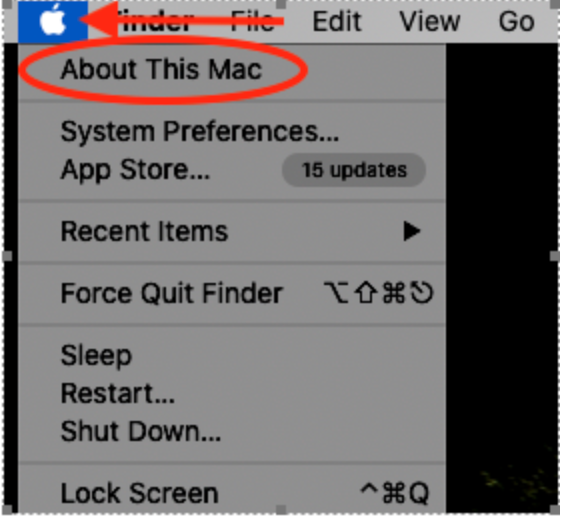
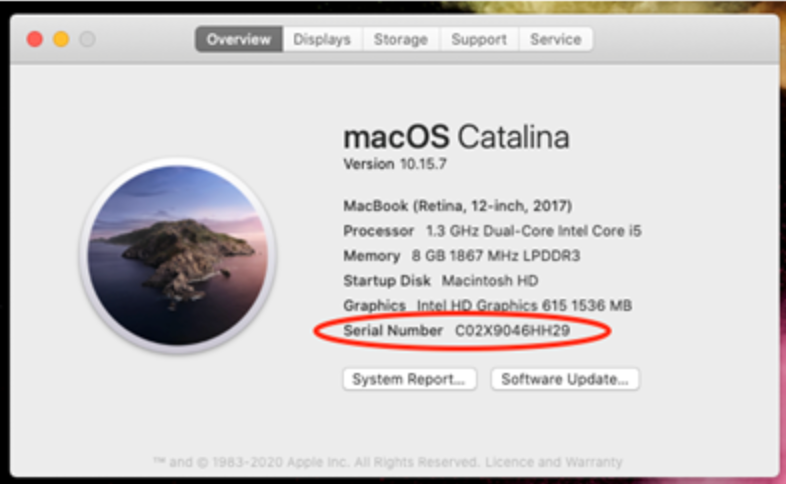
3. This will bring up details of the Mac, including the serial number.
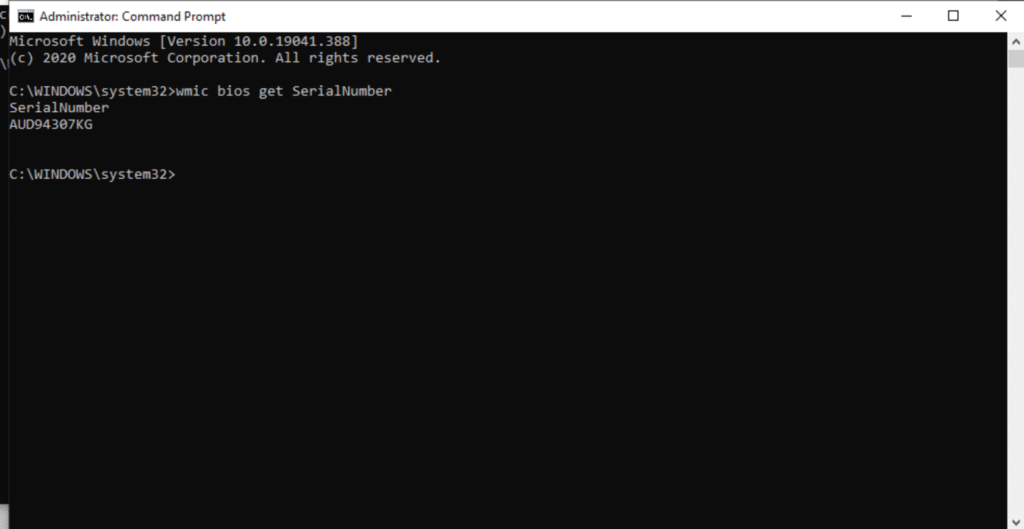
1. Open Start.
2. Search for cmd, right-click the top result, and select the Run as administrator option.
3. Type the following command to find out the computer serial number and press Enter:
wmic bios get SerialNumber
We advise that students bring a laptop that meets the school’s recommendations. This will ensure they are able to install and use the required software without experiencing performance issues. Many students may already have an appropriate device that they use at home which they can bring to school.
The Personal Device Program enables students to use their preferred use technology and brand. Students can opt to use Windows or Mac devices – whichever operating system they are most comfortable with.
We believe that a laptop device with a physical keyboard is more effective for creating and manipulating content in their learning. In addition, iPads and other tablet devices do not always support a variety of software packages used by the school.
Devices need to be charged at home overnight so that they have the best chance of lasting through the school day. Students can also charge devices in school classrooms if required.
Please refer to the school’s recommendations on standard software that is available to your daughter. Heads of Department and subject teachers will also advise her on any specific software requirements for their subject choices.
To assist parents who would like help on deciding on a device, Ascham has developed a Parent Purchase Portal which is linked to from the Student Personal Laptop Program page.
Student devices will be connected to the School’s extensive wireless network and will have access to the Ascham Hub and the internet. The School requires the ICT Acceptable Use Policy to be read and signed by the student and one parent and this document must be returned to the School prior to the students device being allowed access to the Ascham network. Access to the internet from School is filtered and monitored to ensure that students only have access to appropriate content. However, it is the responsibility of each student to read the ICT Acceptable Use Policy and use the internet appropriately from School.
Students will use their laptop for a range of activities throughout the day. The Ascham Hub is the School’s e-Learning platform and provides our students with seamless access to school information including Canvas, our Learning Management System. Canvas allows students to access content anywhere at any time, to communicate with their teachers and their peers, to be involved in discussion forums and self-paced tests. Canvas helps makes learning interactive, engaging and personalised.
The School’s IT staff are able to assist your daughter if she needs assistance in accessing the School’s wireless network and with any general troubleshooting assistance. The IT Department is open before school from 7:30 am, during recess & lunch and after school until 4:30 pm.
If the issue is more significant, then you will need to contact the distributor or manufacturer of the device.
It is strongly recommended that parents consider insuring personal student devices against theft and accidental damage as the school accepts no responsibility for any loss and/or damage to these devices. If parents choose to purchase a device through the BYOD Purchase Portal, insurance can be added at the time of purchase.
All students have access to the Ascham Hub from any web-enabled computer. The Hub provides students with access to school information and Canvas, our Learning Management System.
The School has a comprehensive internet filtering system to ensure that students have access to educationally appropriate sites. Access to social media sites and web based email is not permitted from School. It is the responsibility of students to read and understand the ICT Acceptable Use Policy and to inform their teachers if they are concerned about a particular site. The IT Department regularly monitors and reports on student internet access.
Students are involved in the Typequick touch typing program. Students in the Junior School use the program at school and are encouraged to continue practising at home.